Connect your AI app.
Connect Ozem to ChatGPT, Claude, Gemini, or Grok and build live websites from a single prompt. Copy your MCP Server URL from the Account Dashboard, then follow the steps for your app.
You'll need your MCP Server URL. Grab it from your Account Dashboard.
-
1
Log in to your account at chatgpt.com.
-
2
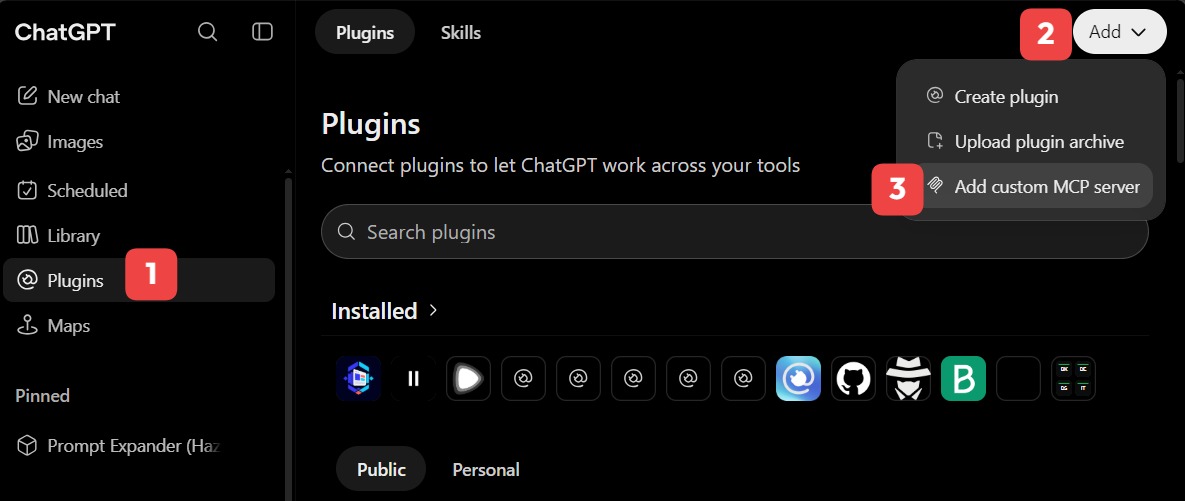
Click Plugins menu on sidebar, then click the Add button > Add custom MCP
-
3
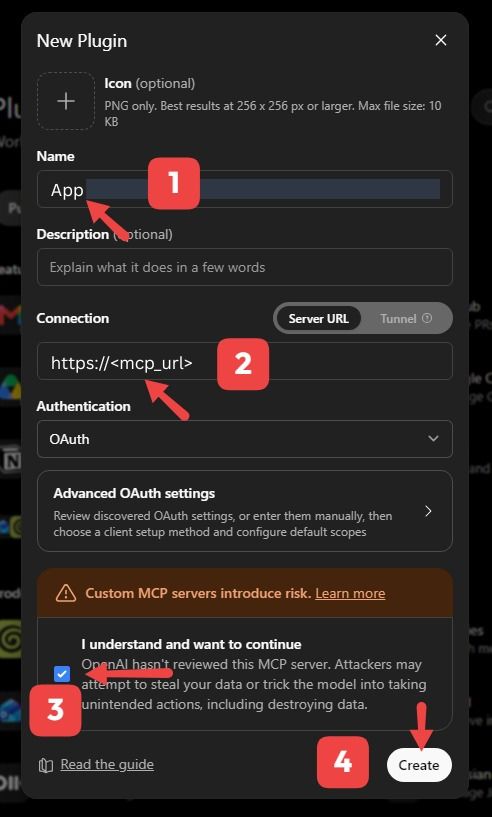
In the New Plugin popup, fill in the Name and MCP Server URL (get the URL from your Account Dashboard), check the consent box, then click Create.
-
4
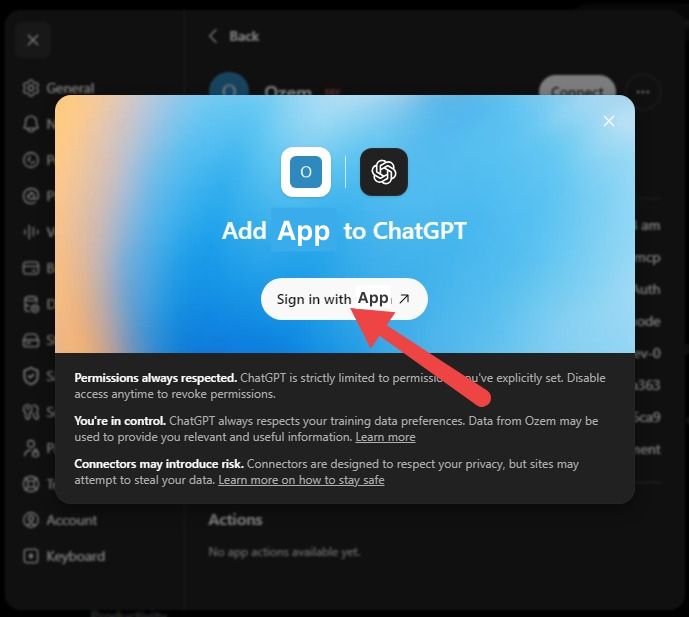
Click Sign in with Ozem.
-
5
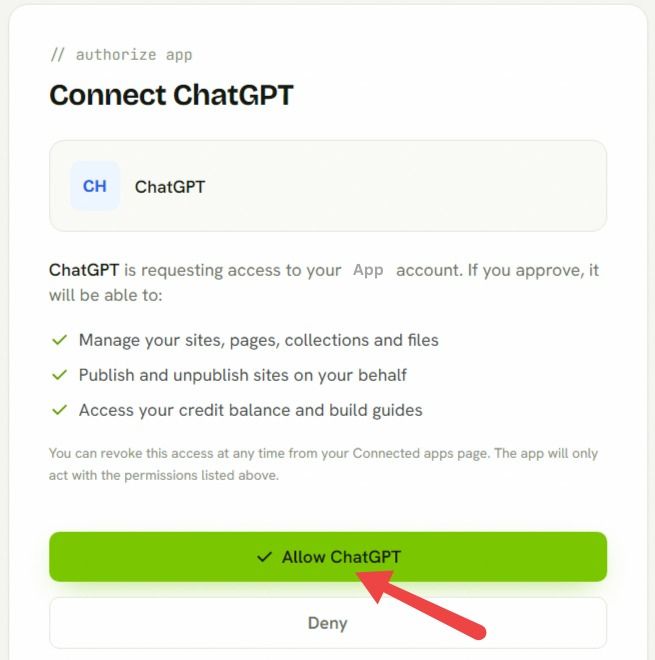
Log in and connect by clicking Allow ChatGPT.
-
6
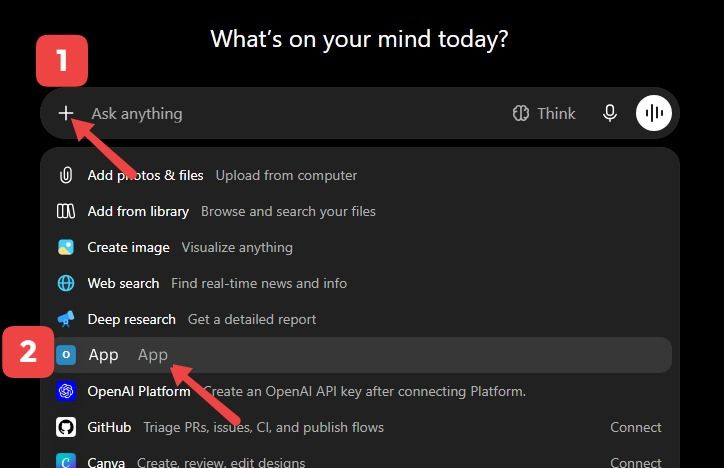
Build a project by mentioning the plugin, or simply prompt: "Use Ozem MCP, please build…"
-
7
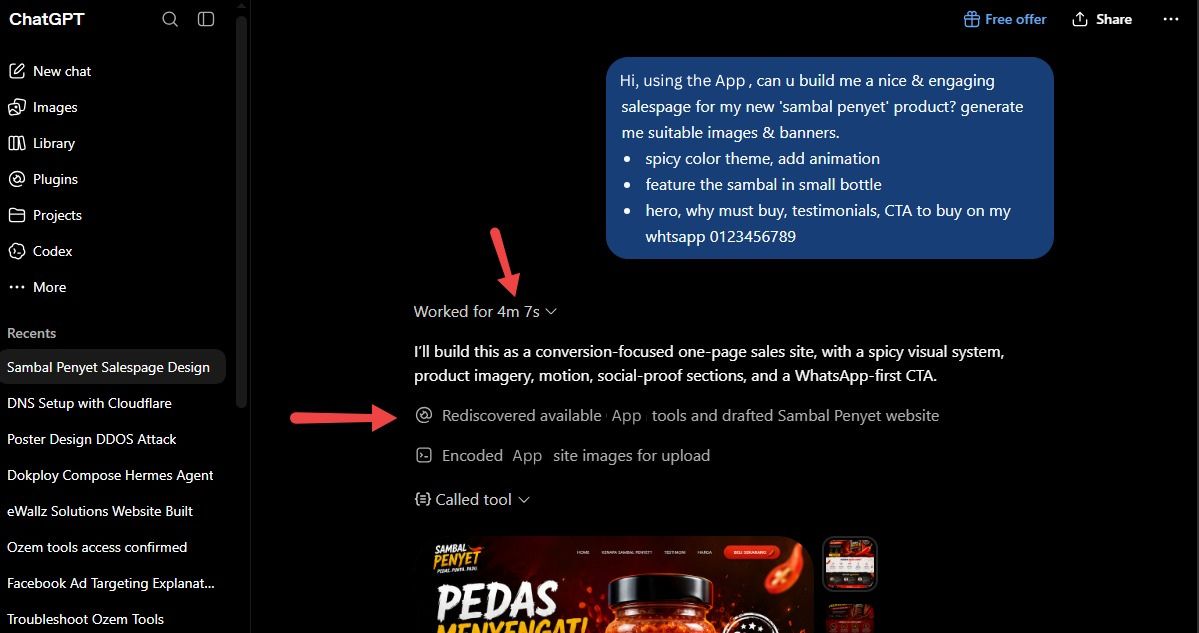
ChatGPT will propose and start using the tools.
-
8
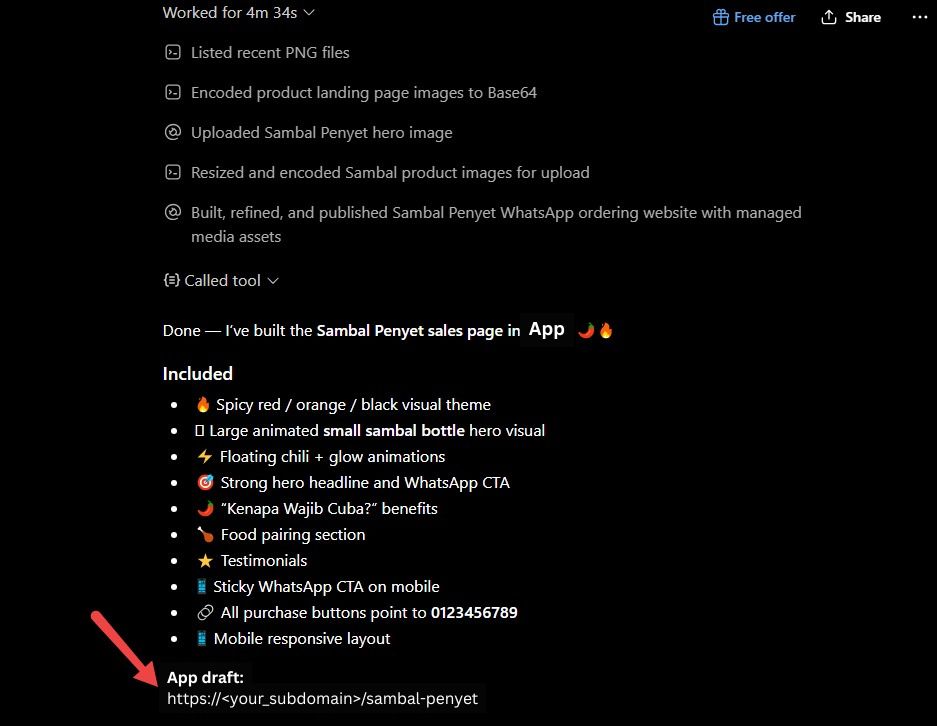
Once done, ChatGPT will share the published web URL for preview.
-
9
Continue refining your project by chatting with ChatGPT to make changes or any adjustments.
-
1
Log in to your account at claude.ai.
-
2
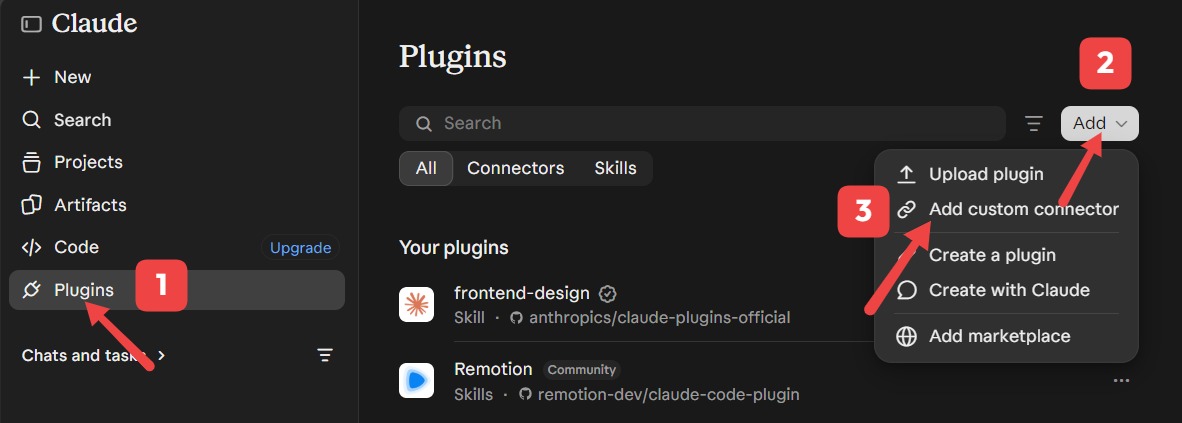
Click Plugins menu on the sidebar, then click the Add button > Add custom connector
-
3
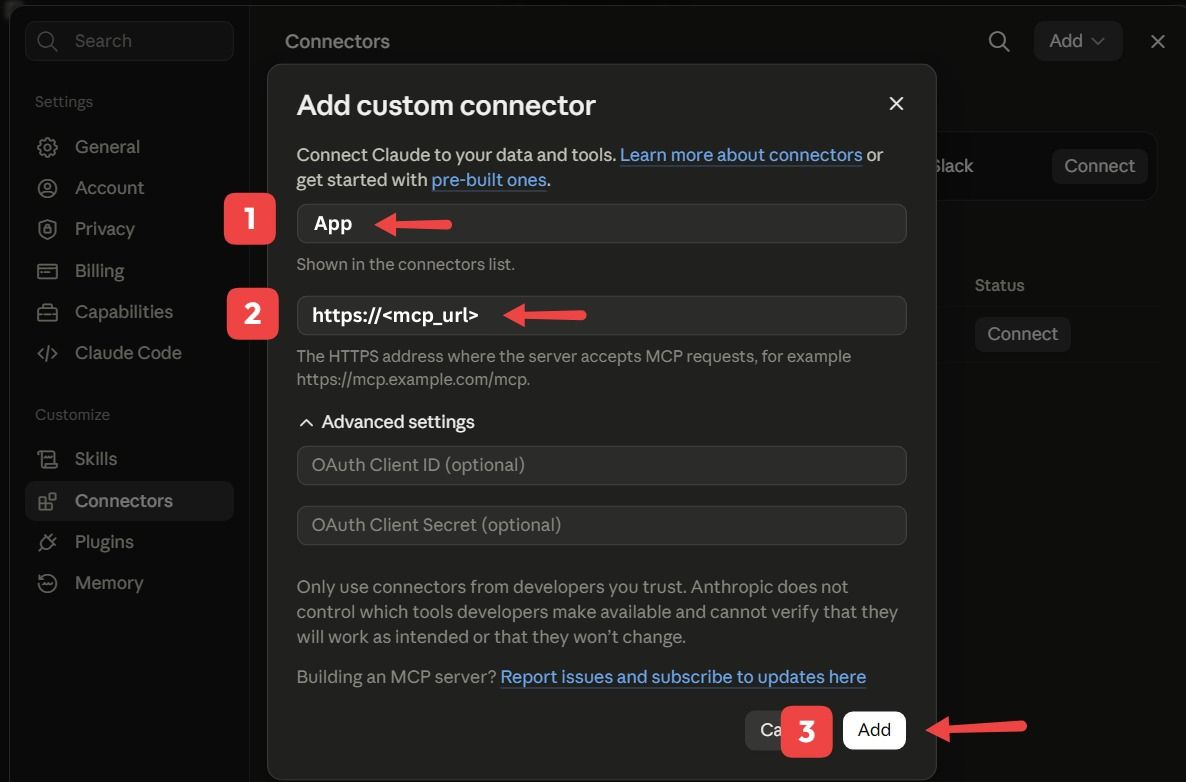
In the Add custom connector popup, fill in the Name (Ozem) and MCP Server URL (get the URL from your Account Dashboard), then click Add.
-
4
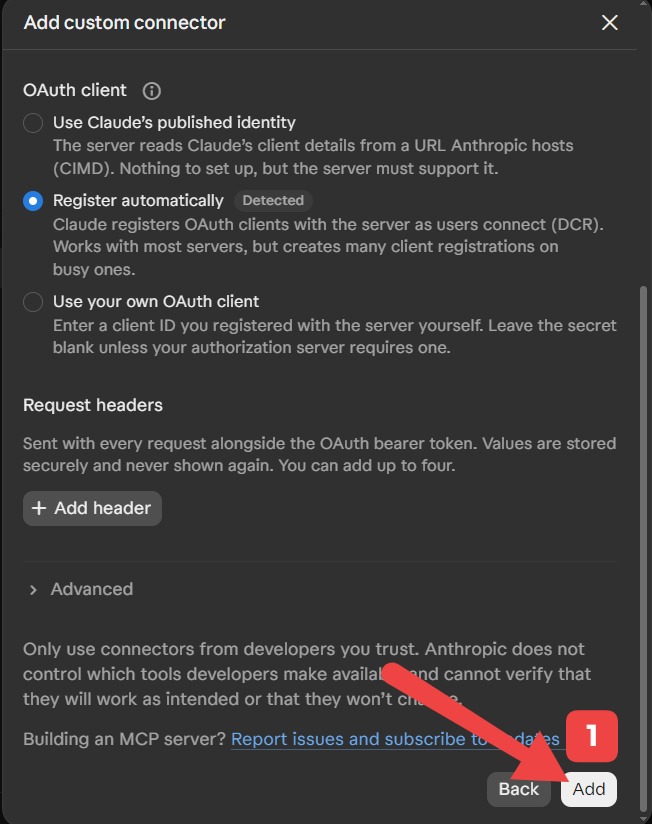
Use default connection settings, and click Add.
-
5
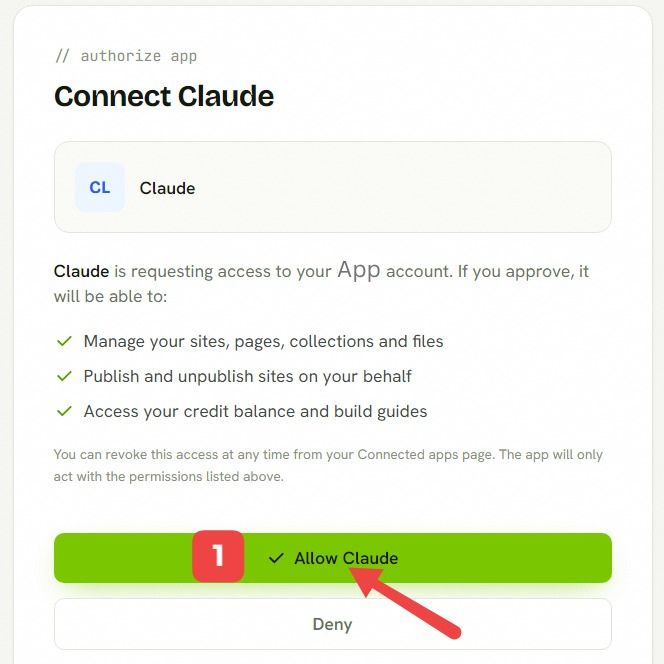
Log in and connect by clicking Allow Claude.
-
6
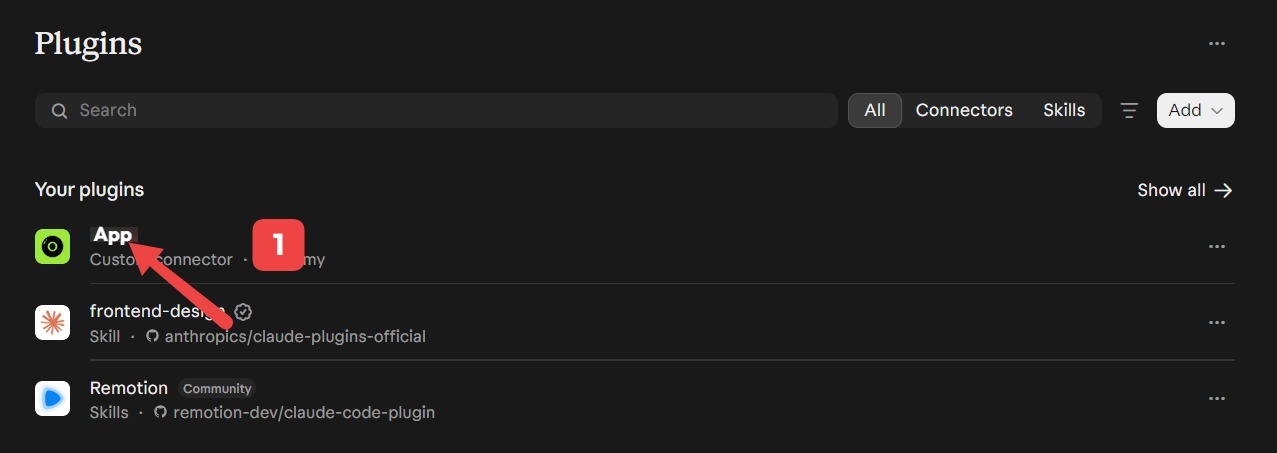
Ozem is now enabled on Claude.
-
7
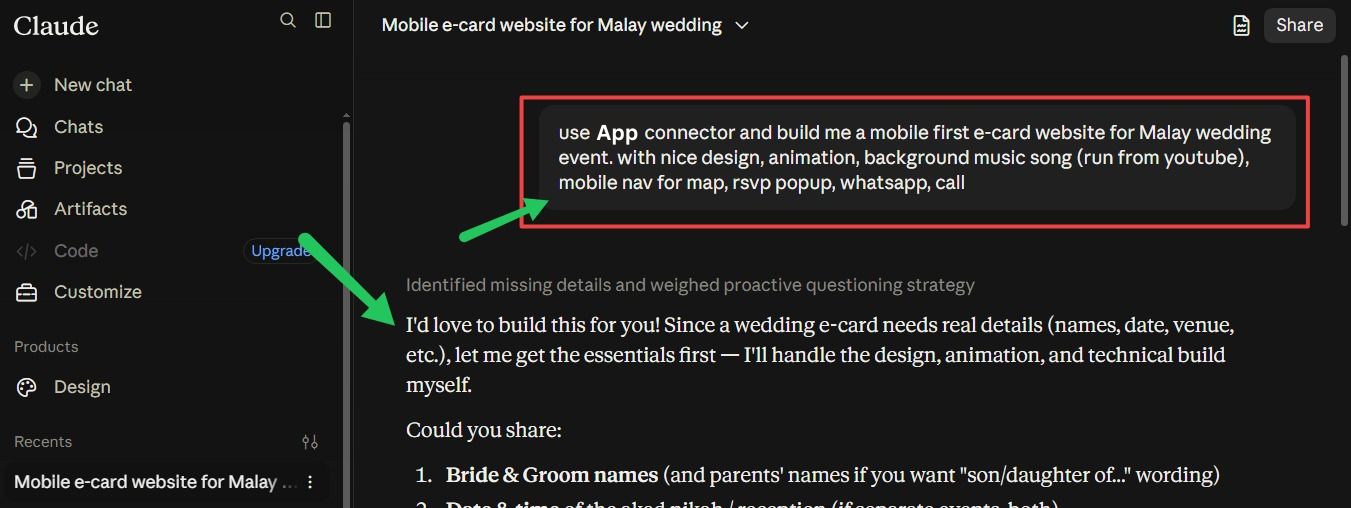
Build a project by mentioning the plugin, or simply prompt: "Use Ozem MCP, please build…"
-
8
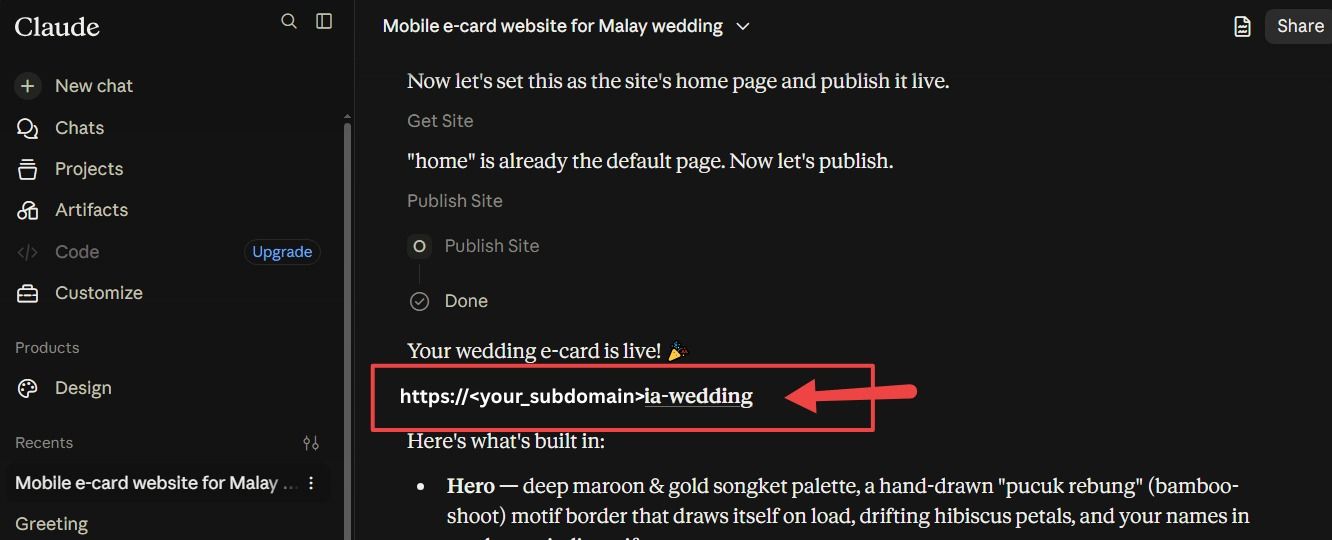
Once done, Claude will share the published web URL for preview.
-
9
Continue refining your project by chatting with Claude to make changes or any adjustments.
-
10
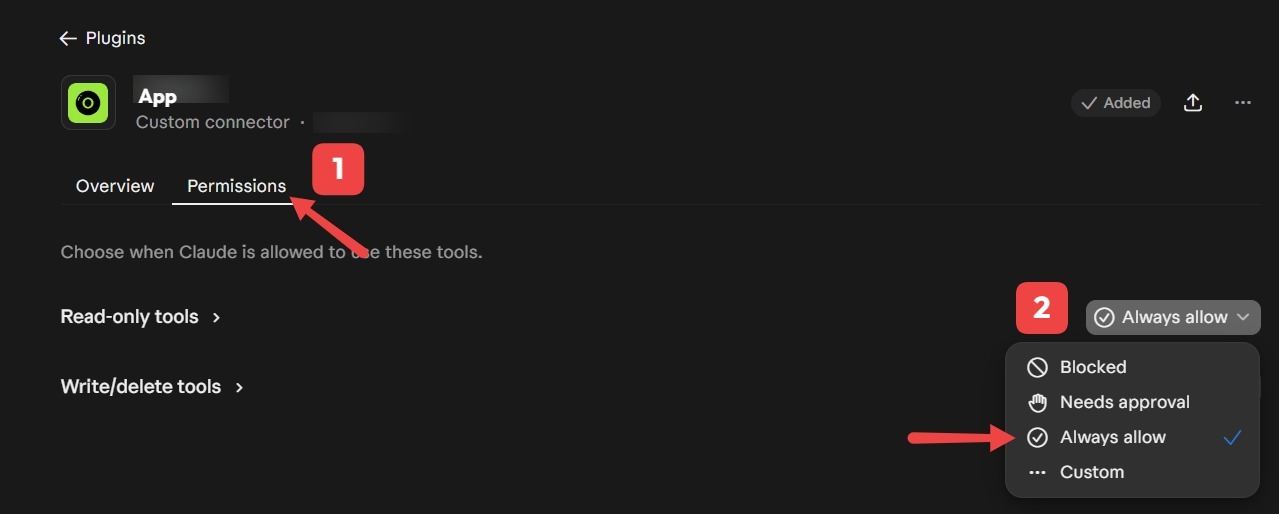
Alternatively, you can also set Claude permission to Always Allow during development.
-
1
Log in to your account at grok.com.
-
2
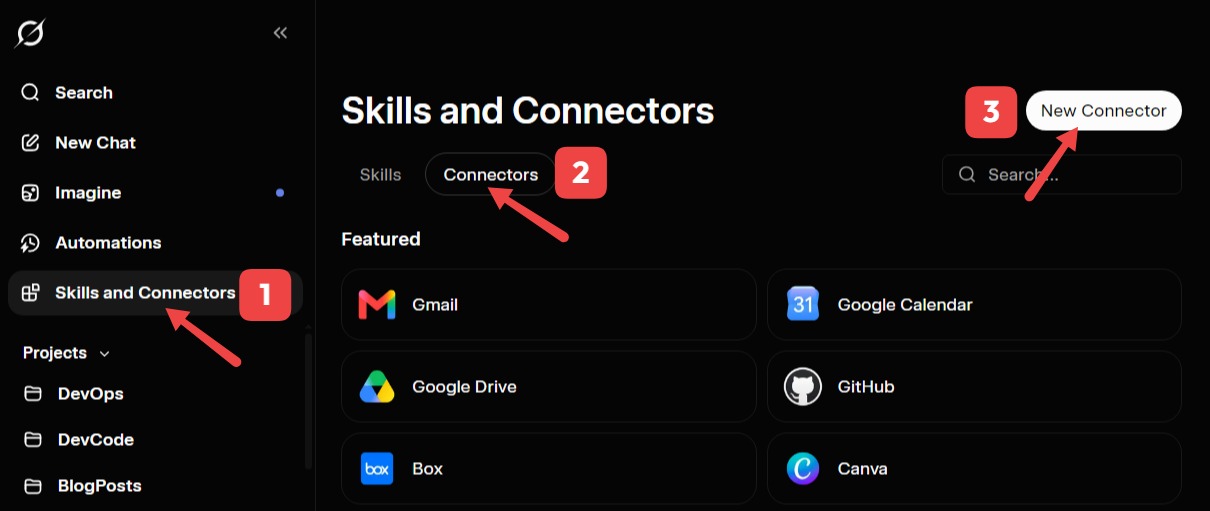
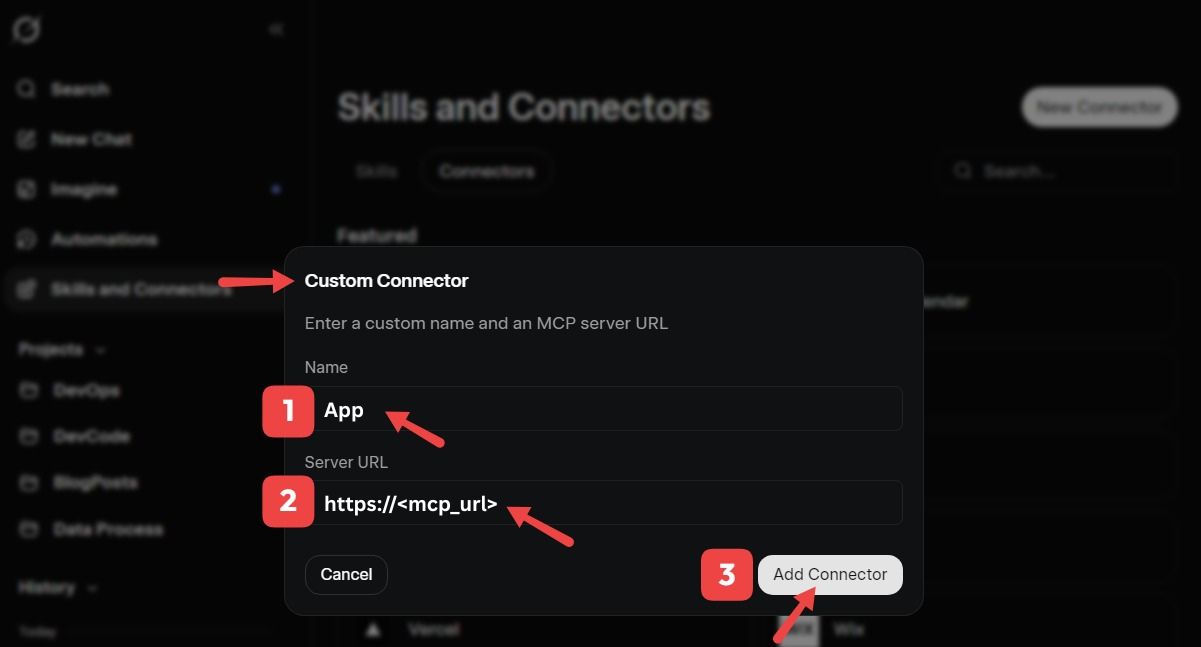
Click the Skills and Connectors menu, then the Connectors tab, then New Connector.
-
3
In the Custom connector popup, fill in the Name and MCP Server URL (get the URL from your Account Dashboard), then click Add Connector.
-
4
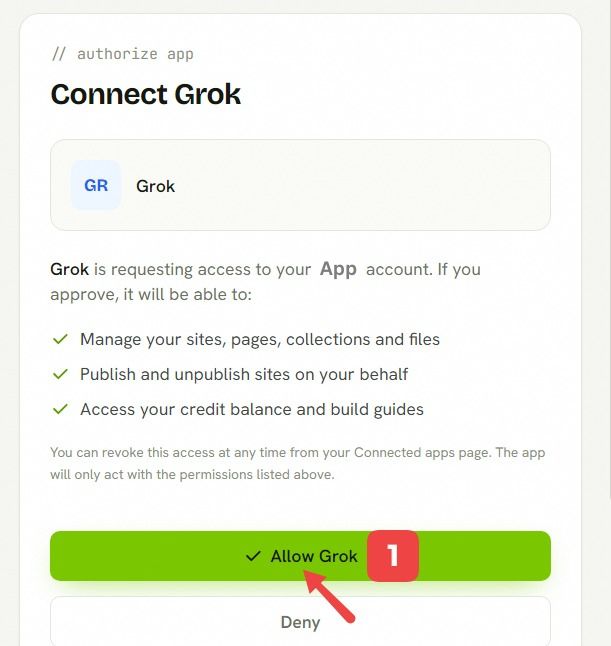
Log in and connect by clicking Allow Grok.
-
5
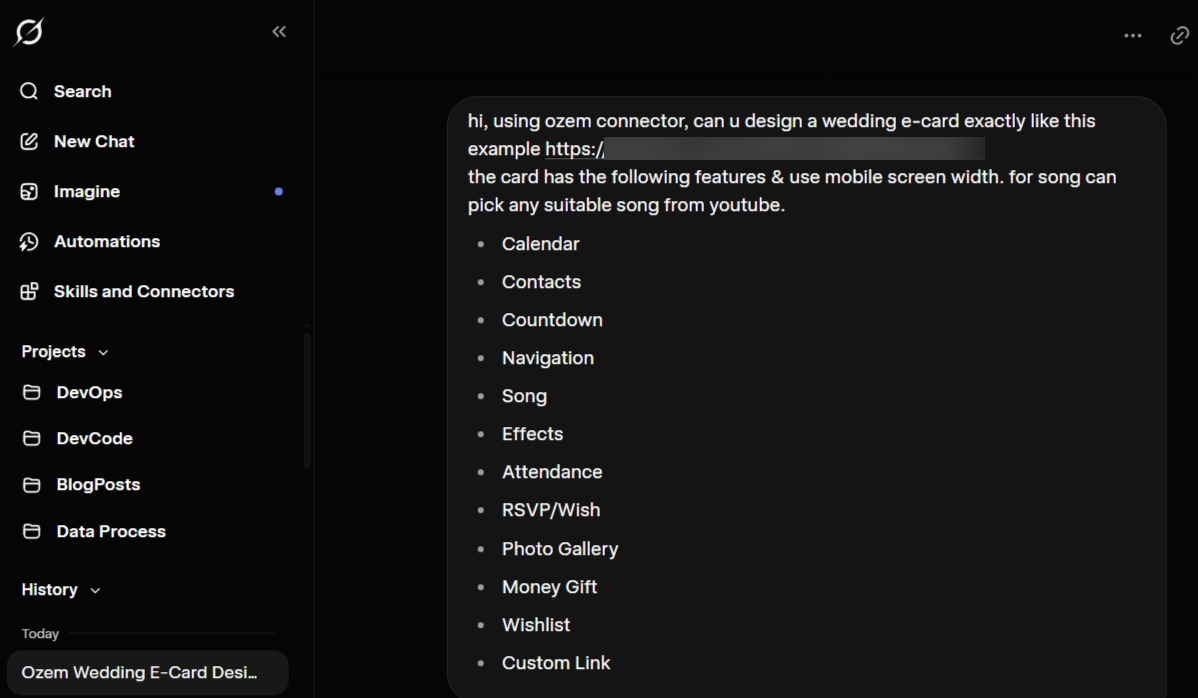
Build a project by mentioning the plugin, or simply prompt: "Use Ozem MCP, please build…"
-
6
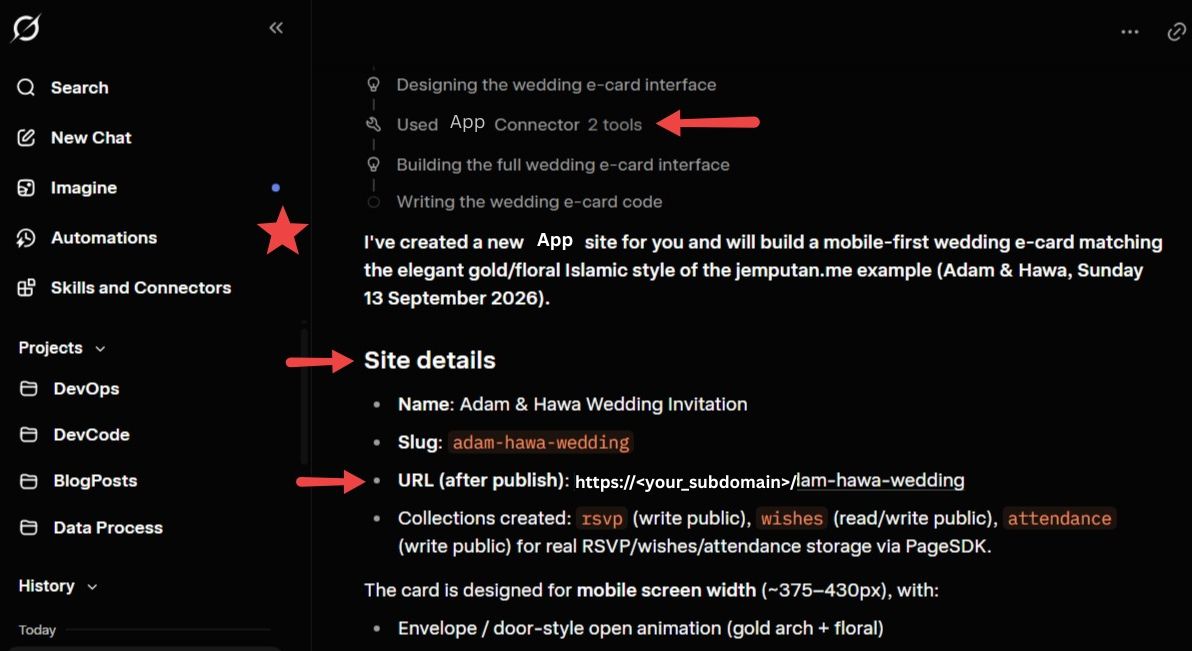
Once done, Grok will share the published web URL for preview.
-
7
Continue refining your project by chatting with Grok to make changes or any adjustments.
-
1
Log in to your account at gemini.google.com.
-
2
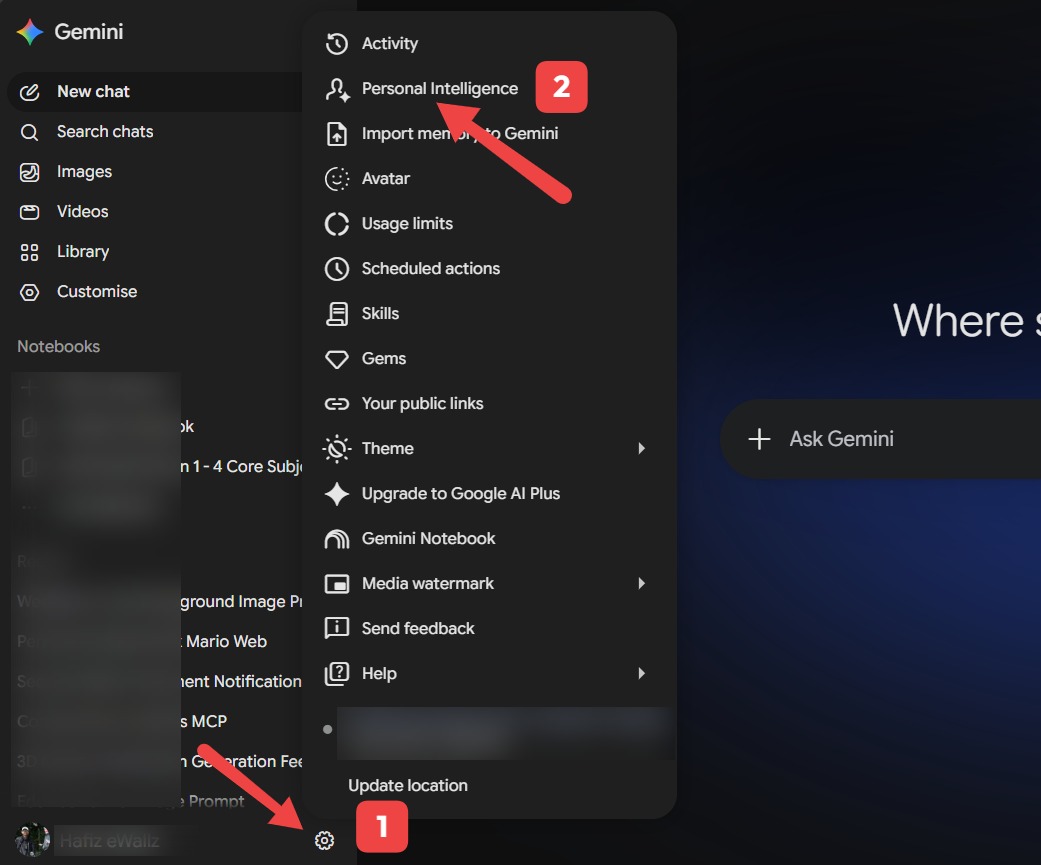
Click the Settings icon and select the Personal Intelligence menu.
-
3
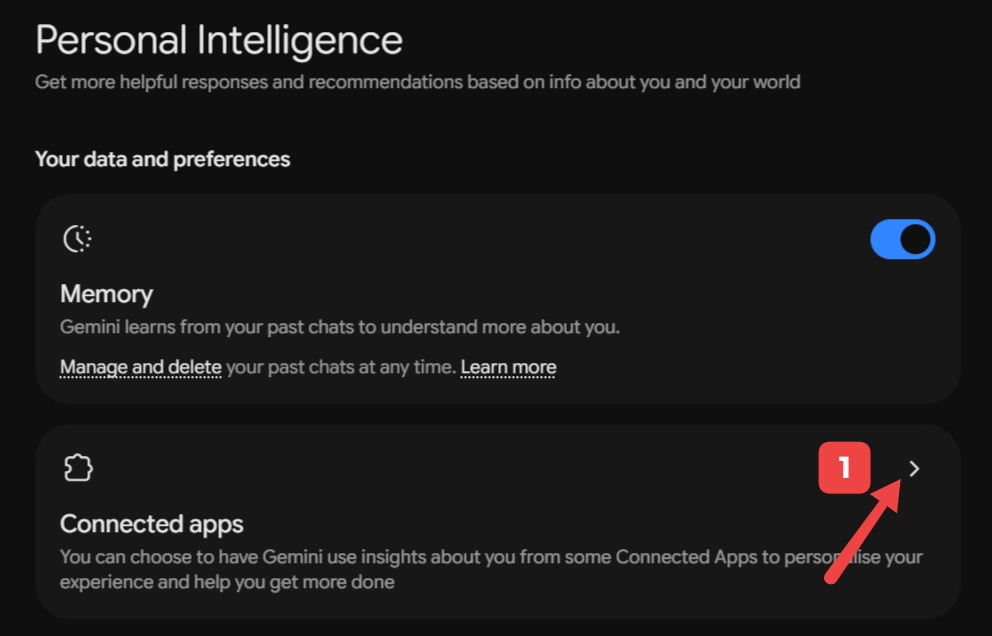
Click the Connected Apps section.
-
4
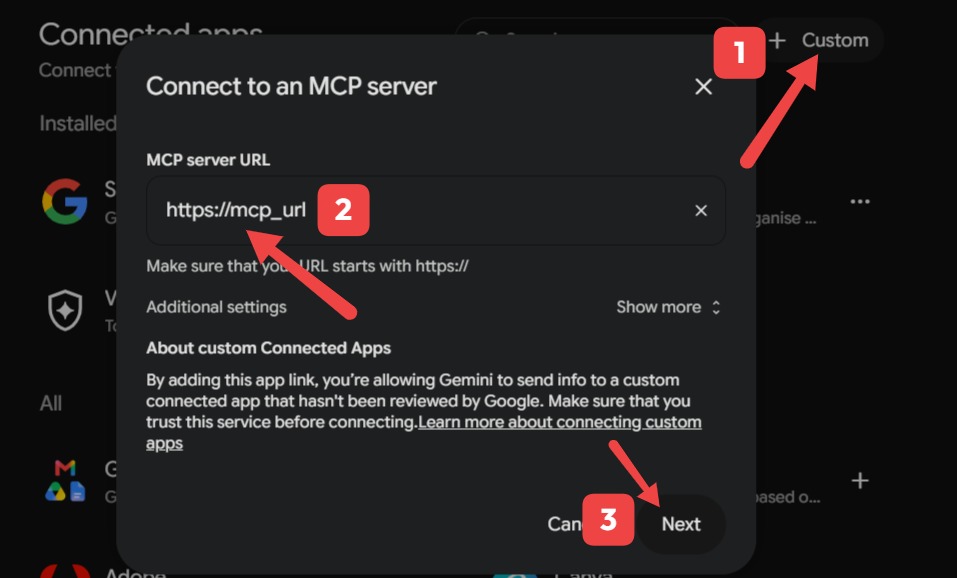
Click the + Custom button, paste your MCP Server URL (copy it from your Account Dashboard), then click Next.
-
5
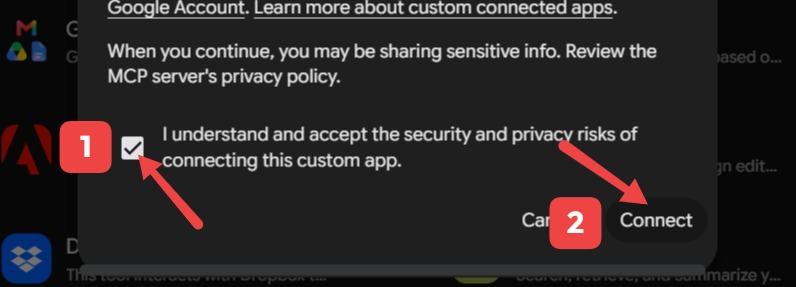
Tick the privacy consent box, then click Connect.
-
6
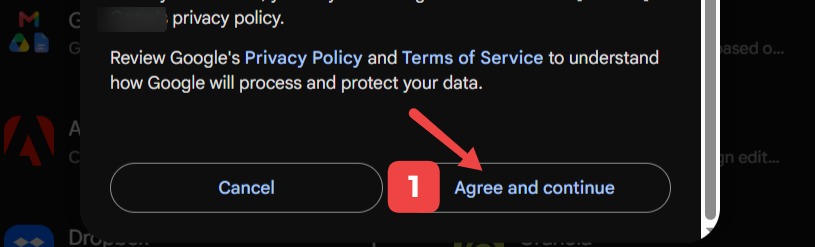
Click Agree & Continue on the Gemini Terms of Service.
-
7
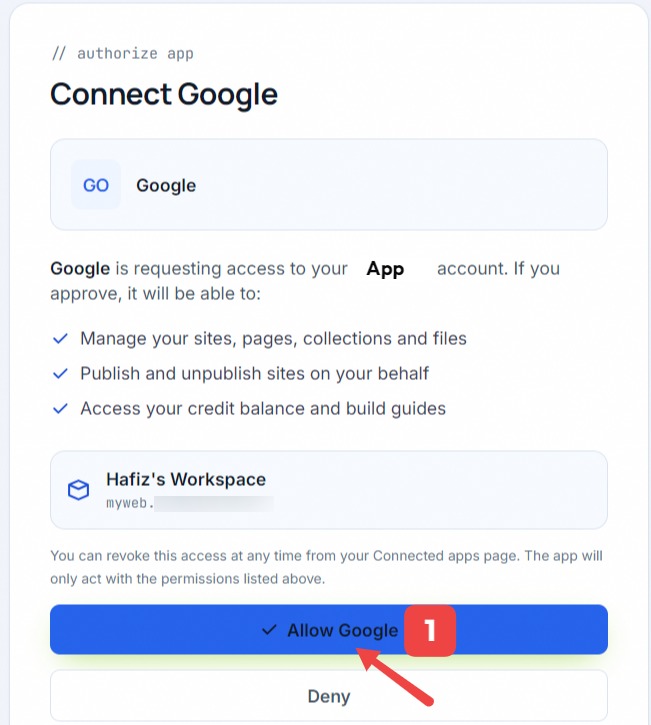
On the Ozem OAuth screen, connect by clicking Allow Google.
-
8
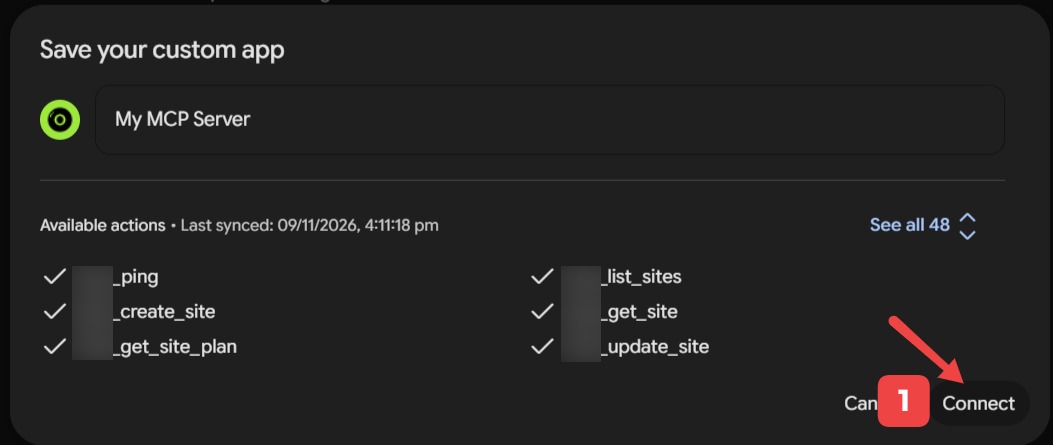
Name the MCP server (e.g. My Site MCP), then click Connect.
-
9
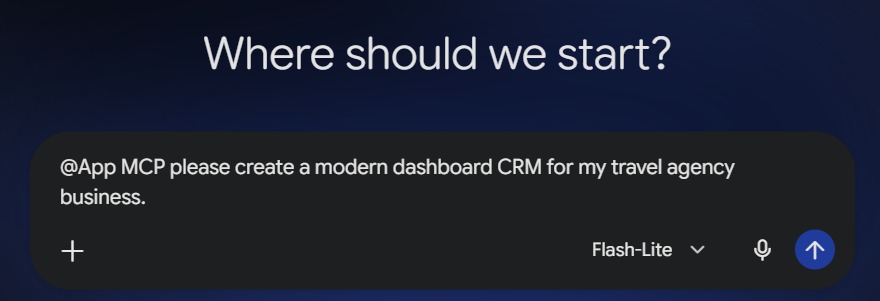
You can now start building with Gemini. Mention the MCP name together with your idea, e.g. "Use Ozem MCP, please build…"
-
10
Continue refining your project by chatting with Gemini to make changes or any adjustments.
Ready to build? Start a new site from your dashboard.
Back to overview →